

Developer Guide
Developer Guide
Introduction
Section titled “Introduction”The Voltage API enables you to integrate Lightning Network functionality into your applications. This guide will walk you through common tasks and help you get started with the API.
Start with your agent
Section titled “Start with your agent”The easiest way to get started is with the Voltage Agent Skill Pack. Install it in Claude Code, Codex, Hermes Agent, OpenCode, or another supported coding agent to get help with Voltage API integrations, payment workflows, and development-wallet setup.
Install the Agent Skill Pack →
If you are starting here we are assuming that you already have a team and a staging wallet setup for you. If you do not, the Wallet Setup Guide will get you ready.
Base URL
Section titled “Base URL”
https://voltageapi.com/v1
Authentication
Section titled “Authentication”The Voltage API uses x-api-key authentication methods for API calls:
- API Key Authentication (via x-api-key header):
—header ‘x-api-key: YOUR_API_KEY’
Generating API Key
Section titled “Generating API Key”API keys are managed within the selected environment. Open the environment’s API Keys page and select Create API Key. Give the key a descriptive name, grant only the permissions the integration needs, and add an IP allowlist when the caller uses stable source addresses.
The secret is shown once. Store it in an approved secret manager and never place it in source control, screenshots, logs, tickets, or chat.
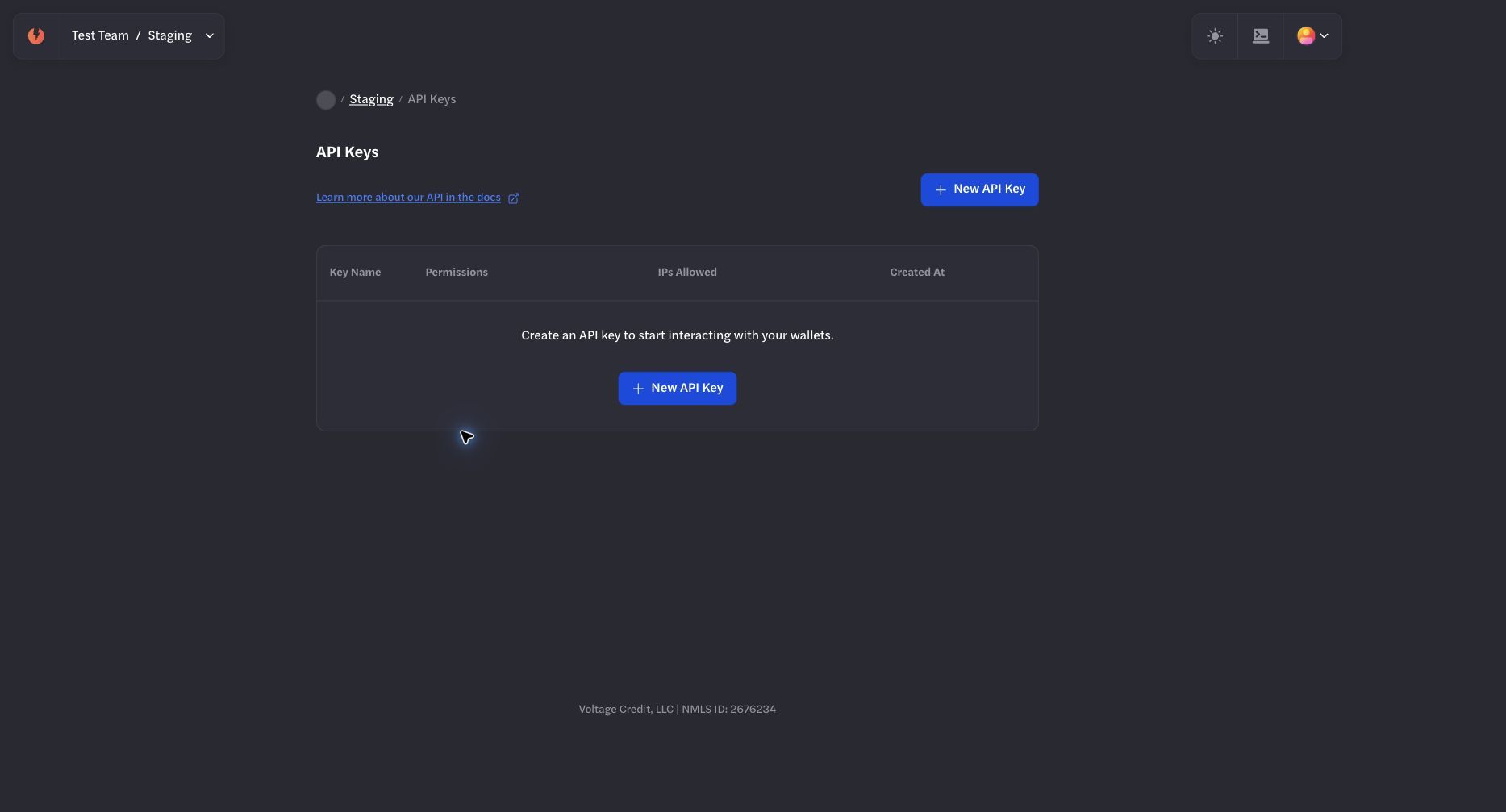
Open API Keys from the environment where the integration will run.
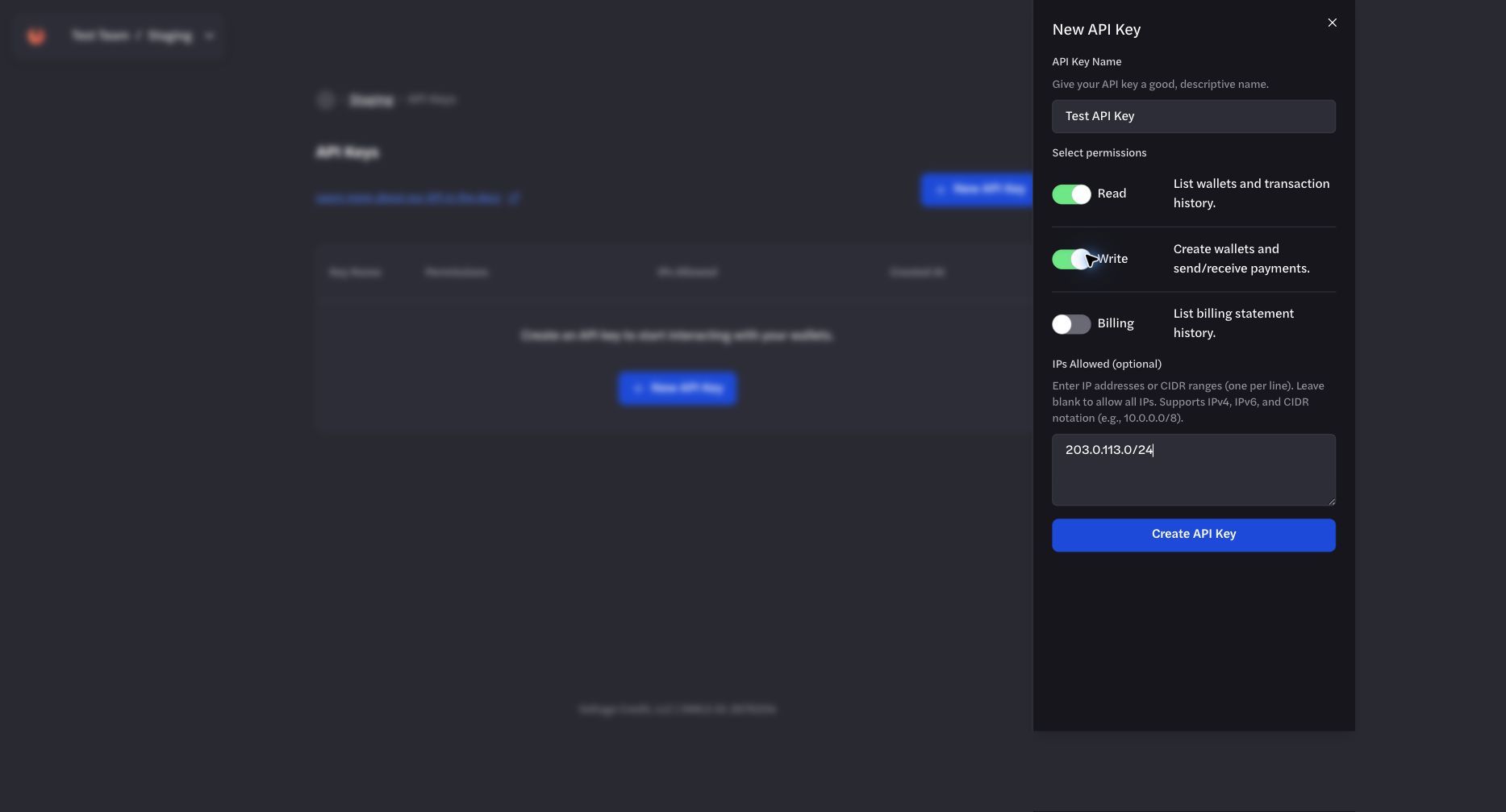
Grant only required permissions and add an IP allowlist when source addresses are stable.
Quick Start Guides
Section titled “Quick Start Guides”Receiving a payment
Section titled “Receiving a payment”The payment flow for receiving payments follows these steps:
1: Create a new payment (Returns 202 on success)
Section titled “1: Create a new payment (Returns 202 on success)”curl'https://voltageapi.com/v1/organizations/{organization_id}/environments/{environment_id}/payments'\ --request POST \ --header 'x-api-key: your-api-key' \ --header 'Content-Type: application/json' \ --data '{ "id": "{payment_id}", "wallet_id": "{wallet_id}", "currency": "btc", "payment_kind": "bolt11", "amount": { "amount": 10000, "currency": "btc", "unit": "msats" }, "description": "test payment" }'2: After receiving 202, fetch the payment details to get the invoice
Section titled “2: After receiving 202, fetch the payment details to get the invoice”curl'https://voltageapi.com/v1/organizations/{organization_id}/environments/{environment_id}/payments/{payment_id}'\ --request GETImportant: The payment creation endpoint returns a 202 status code on success, indicating the request was accepted. You must then fetch the payment details separately to get the invoice and monitor its status.
Example Payment Details Response
{ "bip21_uri": "lightning:lntbs140n1pnag...", "created_at": "2025-03-14T16:08:11.692963Z", "currency": "btc", "data": { "amount": { "amount": 14000, "currency": "btc", "unit": "msats" }, "memo": "test payment", "payment_request": "lntbs140n1pnag..." }, "direction": "receive", "environment_id": "{environment_id}", "error": null, "id": "11ca843c-bdaa-44b6-965a-39ac550fcdf3", "organization_id": "{organization_id}", "status": "receiving", "type": "bolt11", "updated_at": "2025-03-14T16:08:13.959324Z", "wallet_id": "{wallet_id}"}Sending a Payment
Section titled “Sending a Payment”The payment flow for sending payments follows these steps:
1: Initiate payment send (returns 202 on success)
Section titled “1: Initiate payment send (returns 202 on success)”curl'https://voltageapi.com/v1/organizations/{organization_id}/environments/{environment_id}/payments'\ --request POST \ --header 'x-api-key: your-api-key' \ --header 'Content-Type: application/json' \ --data '{ "id": "68d00852-8dd8-4c71-94d2-91c84695da78", "wallet_id": "{wallet_id}", "currency": "btc", "type": "bolt11", "data": { "payment_request": "lntbs1500n1p...", "amount": { "amount": 150000, "currency": "btc", "unit": "msats" }, "max_fee": { "amount": 1000, "currency": "btc", "unit": "msats" } } }'2: After receiving 202, fetch payment status to monitor progress
Section titled “2: After receiving 202, fetch payment status to monitor progress”curl'https://voltageapi.com/v1/organizations/{organization_id}/environments/{environment_id}/payments/{payment_id}'\ --request GETImportant: Like the receive flow, the send payment endpoint returns a 202 status code on success. You must fetch the payment details separately to monitor its status.
Payment Status Monitoring
Section titled “Payment Status Monitoring”When sending or receiving payments, you must actively monitor the payment status by fetching the payment details. The status field will progress through these states:
- For sent payments:
- Initial:
sending - Final:
completedorfailed
- Initial:
- For received payments:
- Initial:
receiving - Final:
completedorfailed
- Initial:
Best practices for monitoring:
- Poll the payment status endpoint every few seconds
- Implement appropriate timeout logic
- Handle both success and error states
- Consider implementing webhook notifications for status changes
Example of checking payment status:
async function monitorPayment(paymentId) {  while (true) {    const response = await fetchPaymentStatus(paymentId);
    if (response.status === 'completed') {      return response; // Payment successful    }    if (response.status === 'failed') {      throw new Error(response.error || 'Payment failed');    }
    // Wait before checking again    await new Promise(resolve => setTimeout(resolve, 2000));  }}
Wallet Balance Management
Section titled “Wallet Balance Management”Regularly check wallet balances to ensure sufficient funds:
curl'https://voltageapi.com/v1/organizations/{organization_id}/wallets/{wallet_id}'Payment History
Section titled “Payment History”Track payment history and events:
curl'https://voltageapi.com/v1/organizations/{organization_id}/environments/{environment_id}/payments/{payment_id}/history'Creating A Staging Wallet through the API:
Section titled “Creating A Staging Wallet through the API:”Before creating another staging wallet through the API, confirm that the staging environment and its current funding resources already exist. Create the API key in that environment and retrieve the current organization, environment, and funding identifiers from supported API or product surfaces.
Do not infer line-of-credit limits or identifiers from a fixed dashboard location.
The example below uses the Mutinynet network. Before using it, create or select Mutinynet Bitcoin for Node-backed or Credit-backed Bitcoin testing, or Mutinynet USD for USD line-of-credit testing. Voltage Cash is not used for either workflow.
curl 'https://voltageapi.com/v1/organizations/{organization_id}/wallets' \ --request POST \ --header 'content-type: application/json' \ --header 'x-api-key: YOUR_STAGING_API_KEY' \ --data '{ "environment_id": "{environment_id}", "id": "{client_generated_wallet_id}", "line_of_credit_id": "{line_of_credit_id}", "limit": 100000000, "metadata": {"tag": "testing wallet"}, "name": "Staging Wallet", "network": "mutinynet" }'Metadata Support
Section titled “Metadata Support”Add custom metadata to wallets for better organization:
curl 'https://voltageapi.com/v1/organizations/{organization_id}/wallets' \ --request POST \ --data '{ "name": "Customer Wallet", "metadata": { "customer_id": "cust_123", "purpose": "subscription_payments" } // ... other wallet creation fields }'Error Handling
Section titled “Error Handling”The API uses standard HTTP status codes:
- 200: Success
- 201: Resource created
- 202: Successfully requested a new payment be created
- 400: Bad request
- 403: Authentication/authorization error
- 404: Resource not found
- 500: Server error
Always check the response status and handle errors appropriately.
Support and Resources
Section titled “Support and Resources”For additional support:
Remember to always use appropriate error handling and logging in your integration to ensure reliable operation of your Lightning Network payments.