

Developer Guide
Wallet Management
Before you begin
Section titled “Before you begin”Create or select a team, then work in a staging environment before configuring production resources. API keys, webhooks, wallets, and payment activity belong to the selected environment.
If Voltage has already configured an environment and wallet for your team, continue to Developer Guide.
Key concepts
Section titled “Key concepts”Environment: Separates staging and production workflows. Use different credentials and webhook registrations for each environment.
Wallet: Holds balances and payment activity for one environment. An environment can contain multiple wallets.
Development wallet: Uses a test network or test balance with no real-world value. Choose the wallet according to the implementation being tested:
- Mutinynet Bitcoin: Bitcoin-backed implementations, including node-backed Bitcoin and credit-backed Bitcoin.
- Mutinynet USD: USD line-of-credit implementations that move payments over Bitcoin or Lightning while using a USD denomination.
- Voltage Cash: Experimental stablecoin testing only. It is not currently live for production use because the intended Tether-backed asset has not yet been minted.
Production wallet: Uses the production network and approved funding model for live payments.
API key: An environment-scoped secret sent in the x-api-key header. Grant only the permissions required by the application or service.
Create an environment
Section titled “Create an environment”- From the team overview, select New Environment.
- Enter a descriptive name, such as
Staging. - Select Create, then open the environment when it is ready.
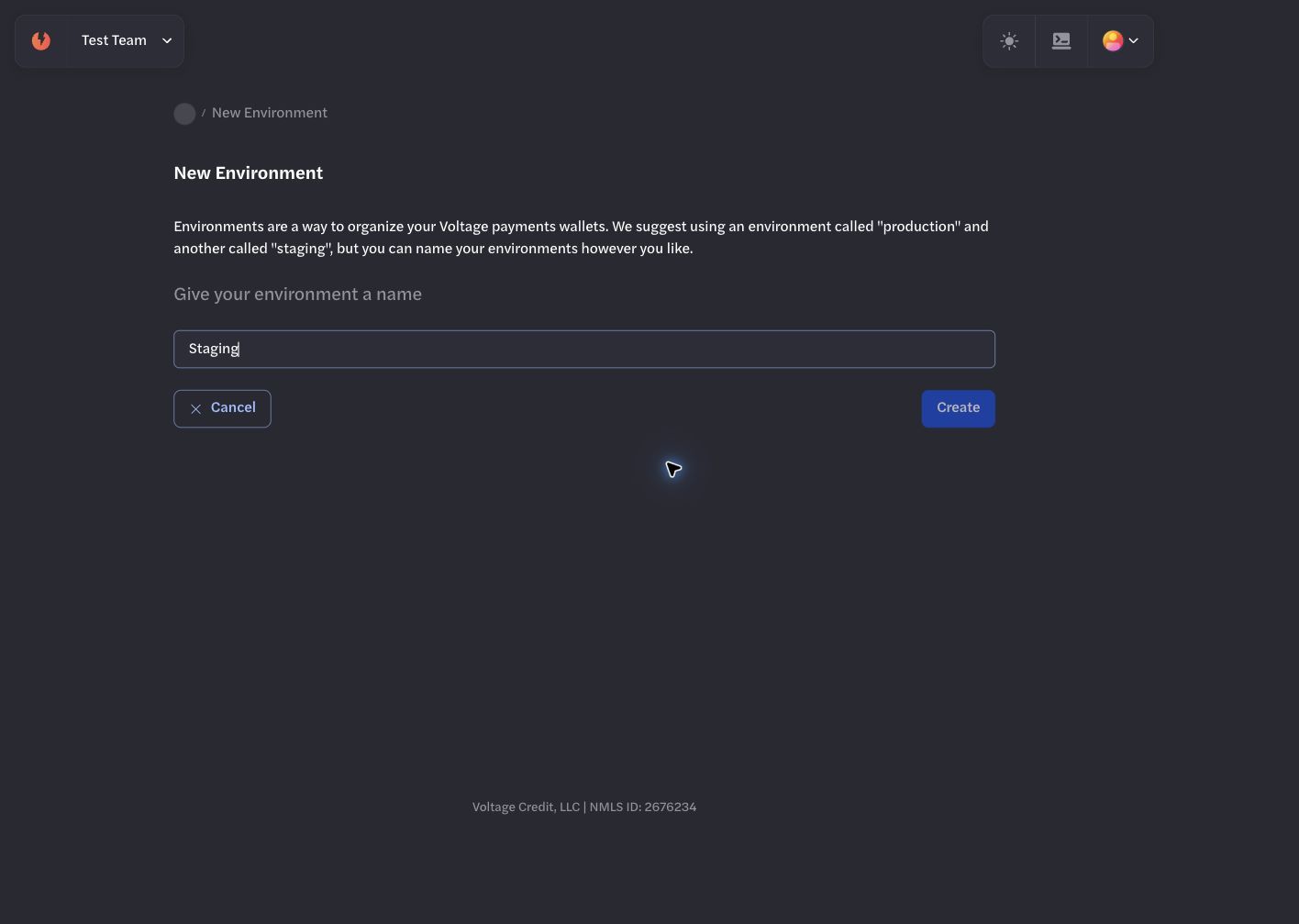
Use a clearly named environment for isolated staging work.
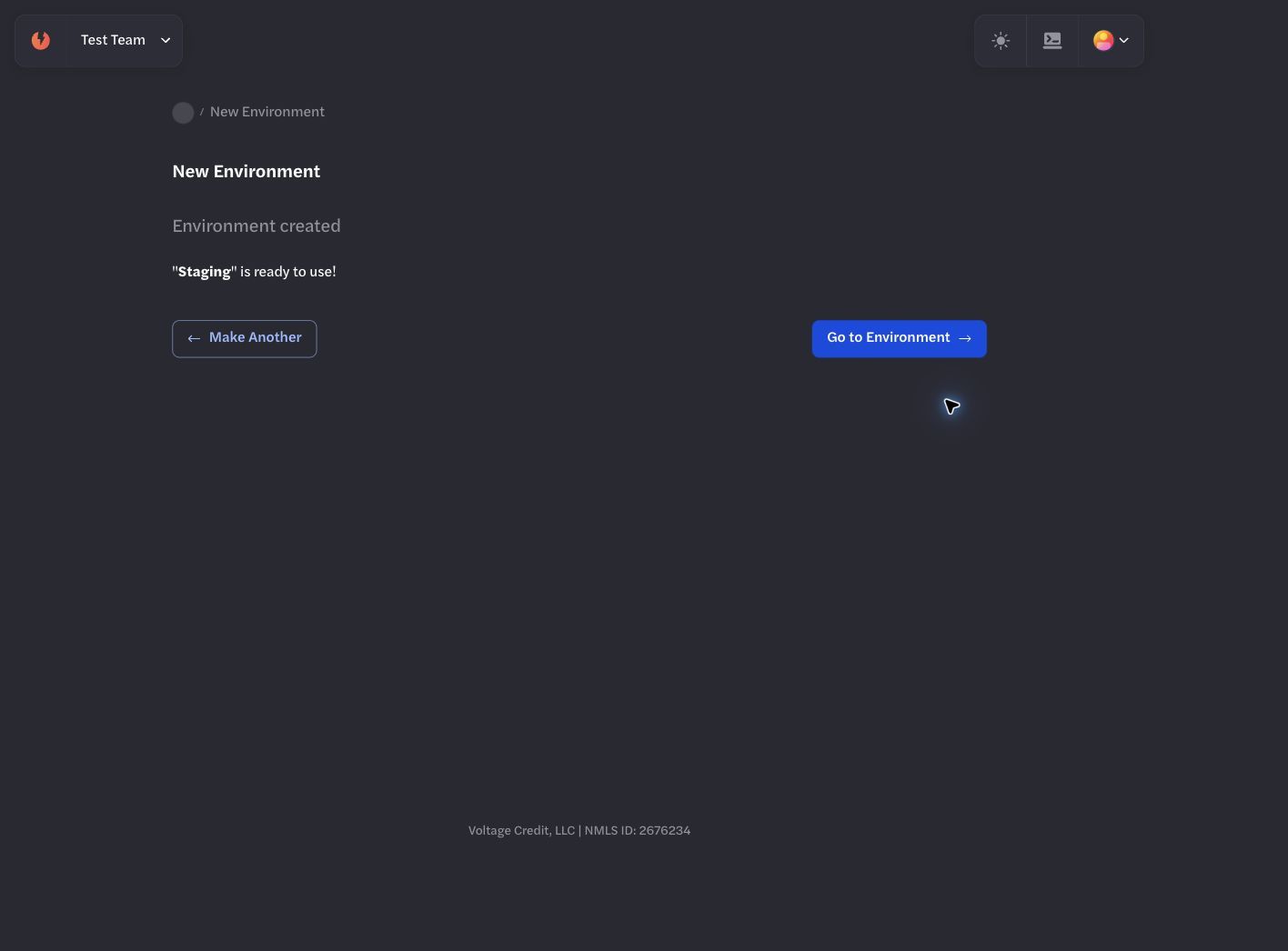
Open the environment after creation to manage its wallets and credentials.
Use a separate production environment when the integration is ready for live activity.
Create a wallet
Section titled “Create a wallet”- Open the intended environment and select Add New Wallet.
- Enter a wallet name and select Continue.
- Choose Development or Production.
- Select the wallet currency and backing model required by your implementation.
- Select Create and wait for the wallet overview to load.
Provisioning is asynchronous. Do not assume a fixed completion time; wait for the current product status before using the wallet.
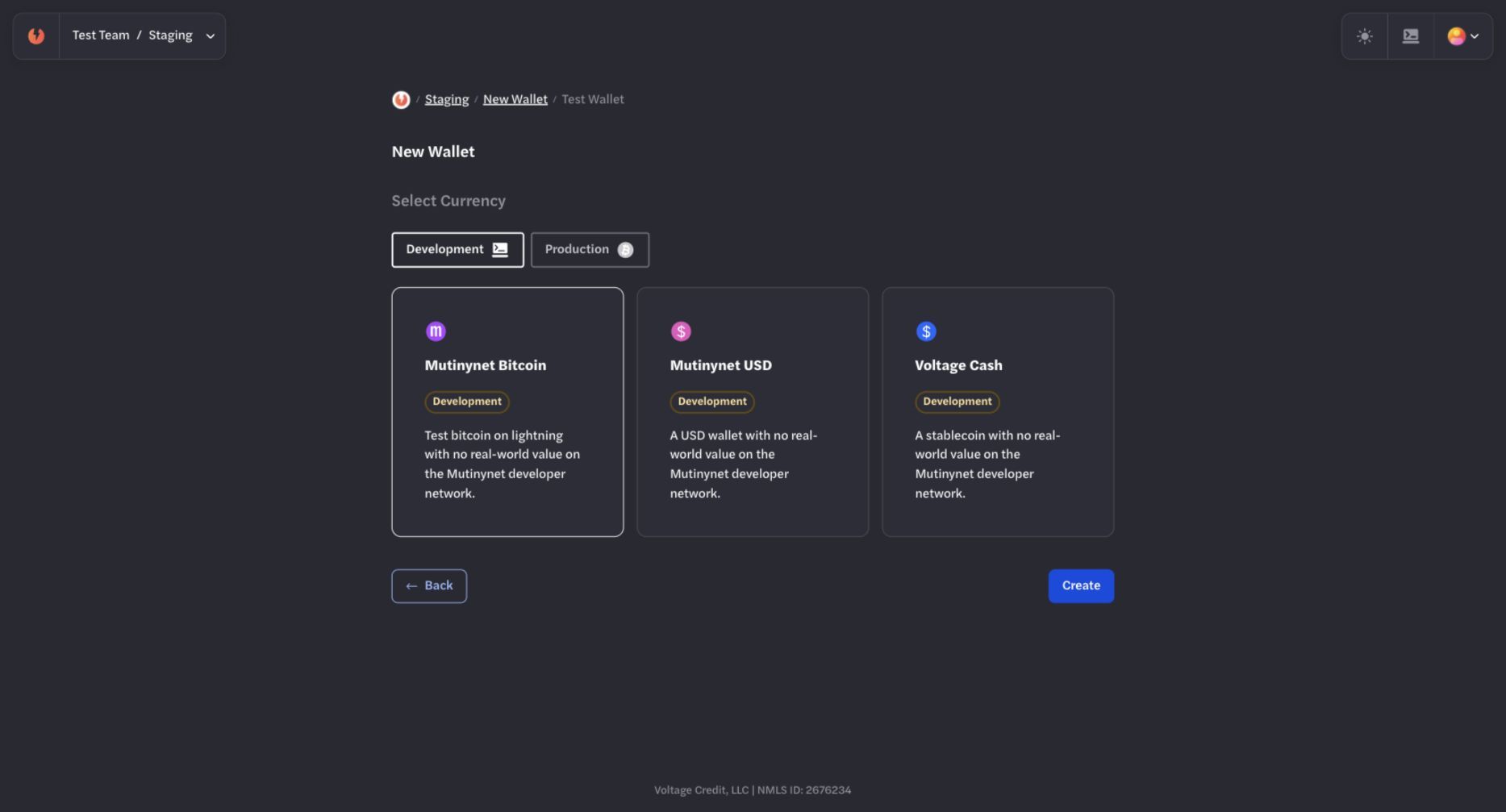
Choose Mutinynet Bitcoin for Bitcoin-backed tests, Mutinynet USD for USD line-of-credit tests, or Voltage Cash only for experimental stablecoin testing.
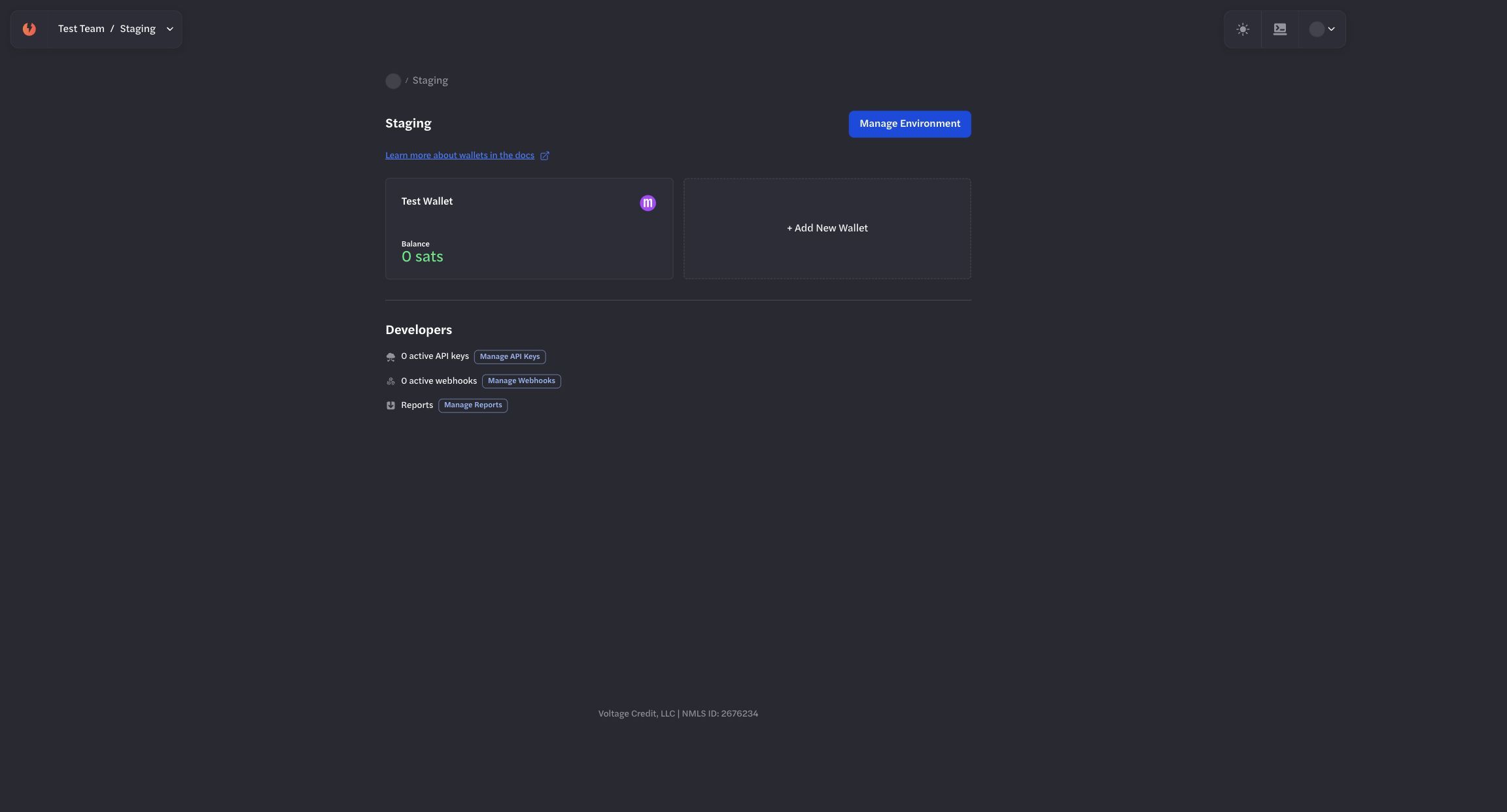
Wait for the wallet to become available before depending on it.
Use the wallet dashboard
Section titled “Use the wallet dashboard”The wallet overview shows the network, balance or amount owed, credit usage when applicable, payment actions, and activity.
- Select Receive to create a payment request.
- Select Send to enter a destination and review a payment before submission.
- Use All Payments and Payment Requests to review status and history.
- Use Filters to narrow payment activity by time, ID, status, type, or direction.
- Use Reports to generate Payment History or Wallet Balance Snapshot reports for a selected date range.
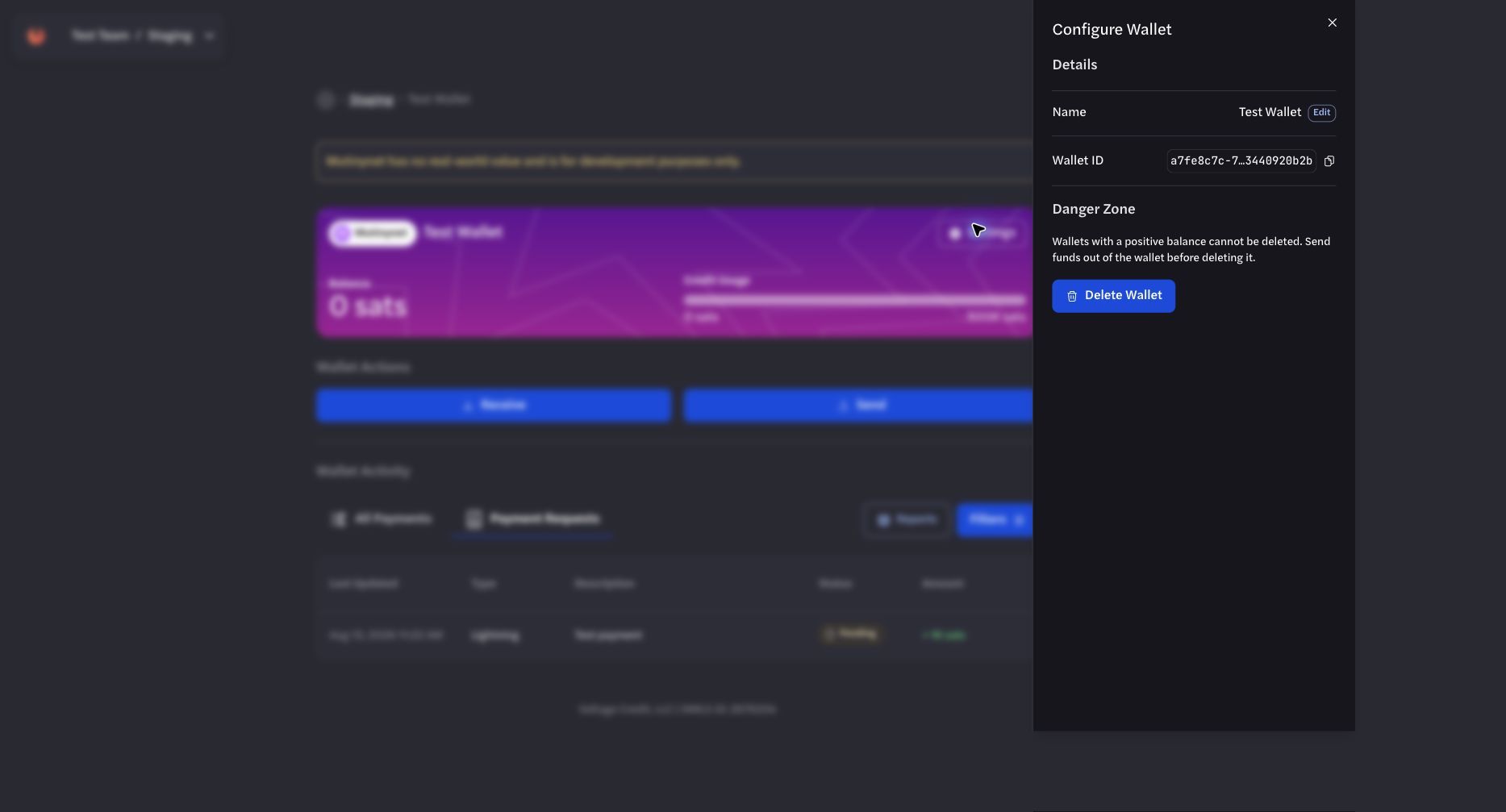
Open Wallet Settings when you need to verify the selected wallet’s configuration and identifier.
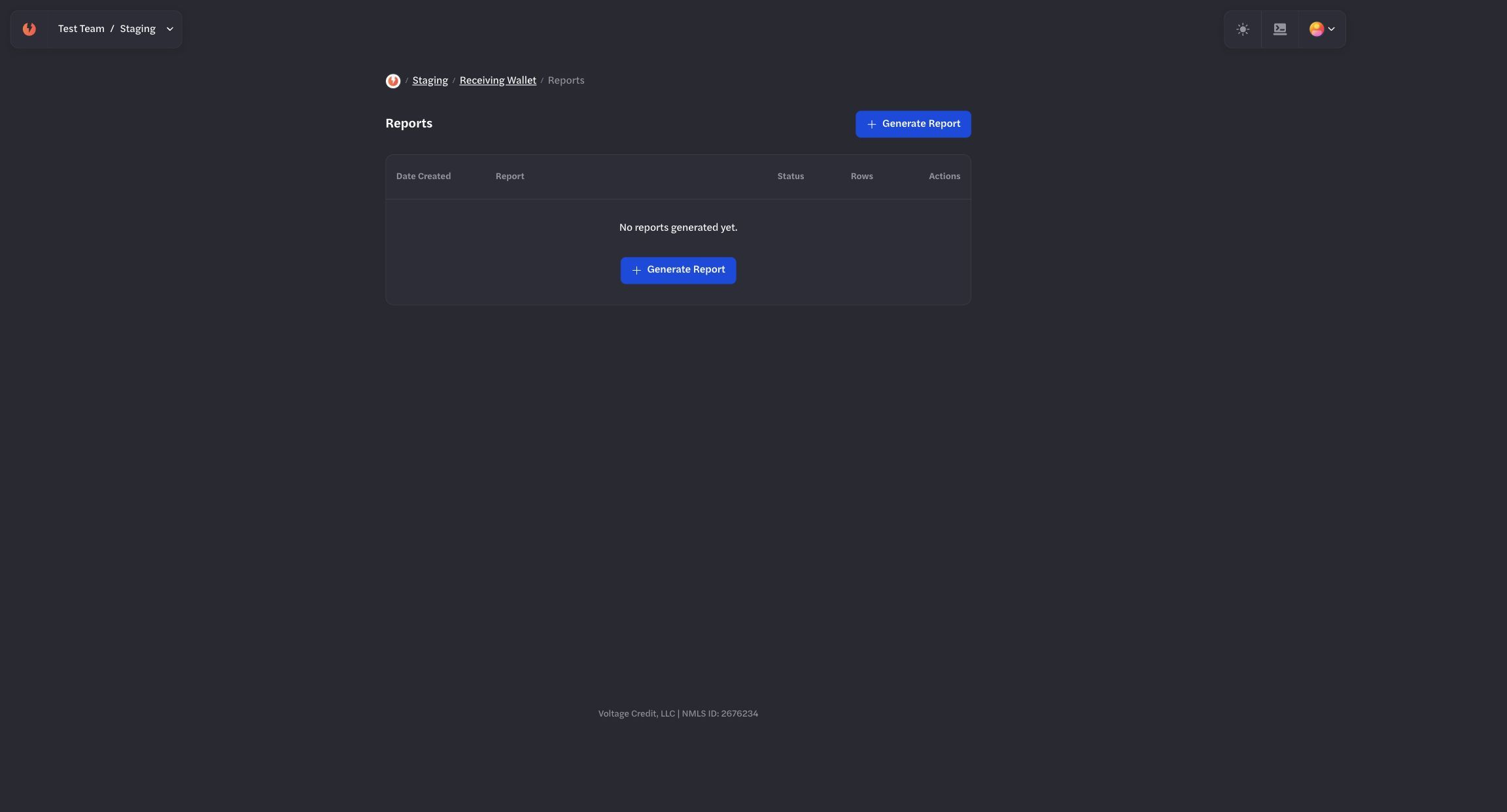
Reports are generated from the selected wallet’s Reports page.
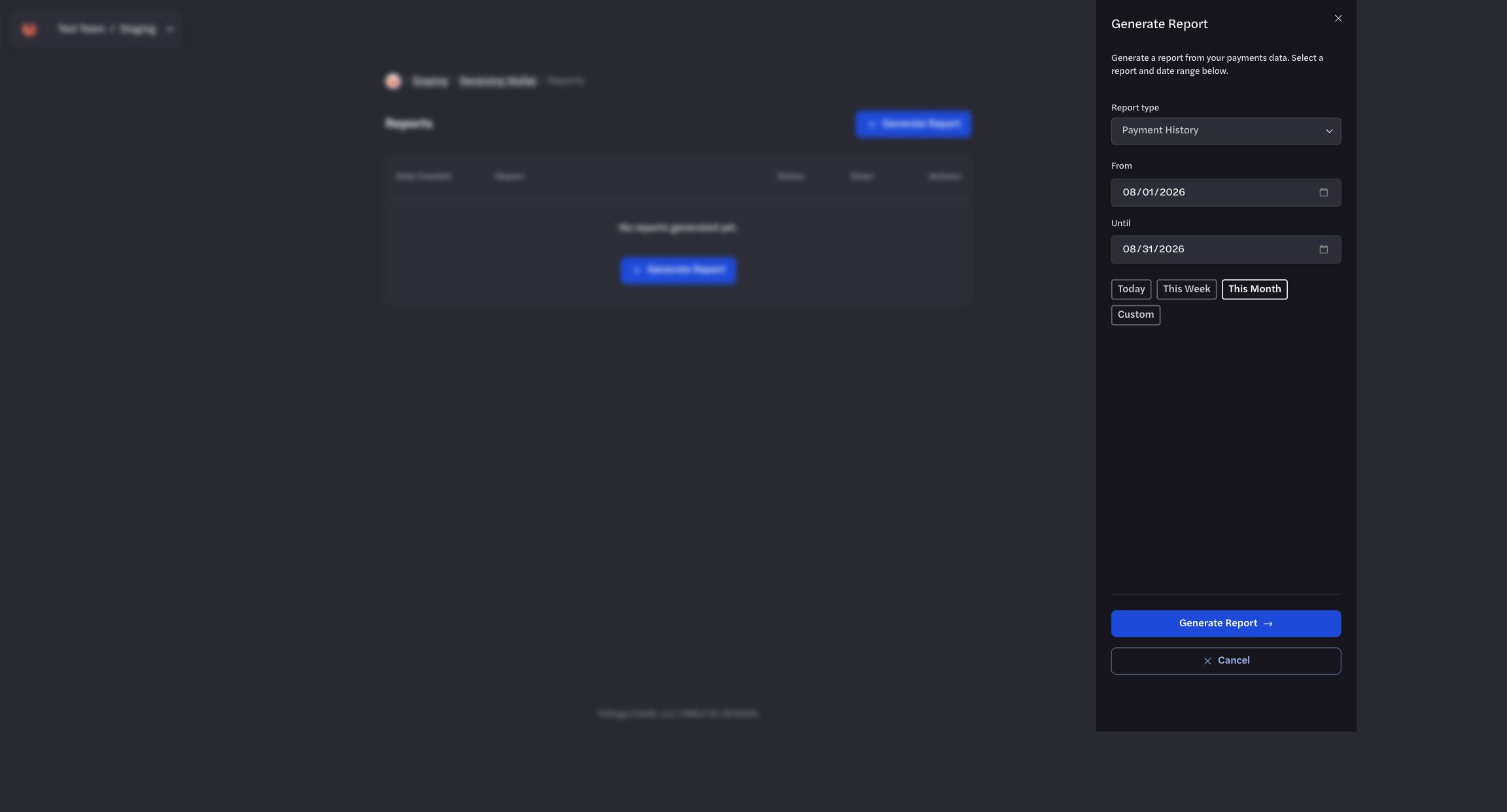
Choose a supported report type and date range before generating the report.
Create an API key
Section titled “Create an API key”Open the selected environment’s API Keys page and select Create API Key.
- Give the key a descriptive name.
- Enable only the permissions the integration needs.
- Add an IP allowlist when the caller uses stable source addresses.
- Create the key and store the one-time secret in an approved secret manager.
Never place an API key in source control, screenshots, logs, tickets, or chat.
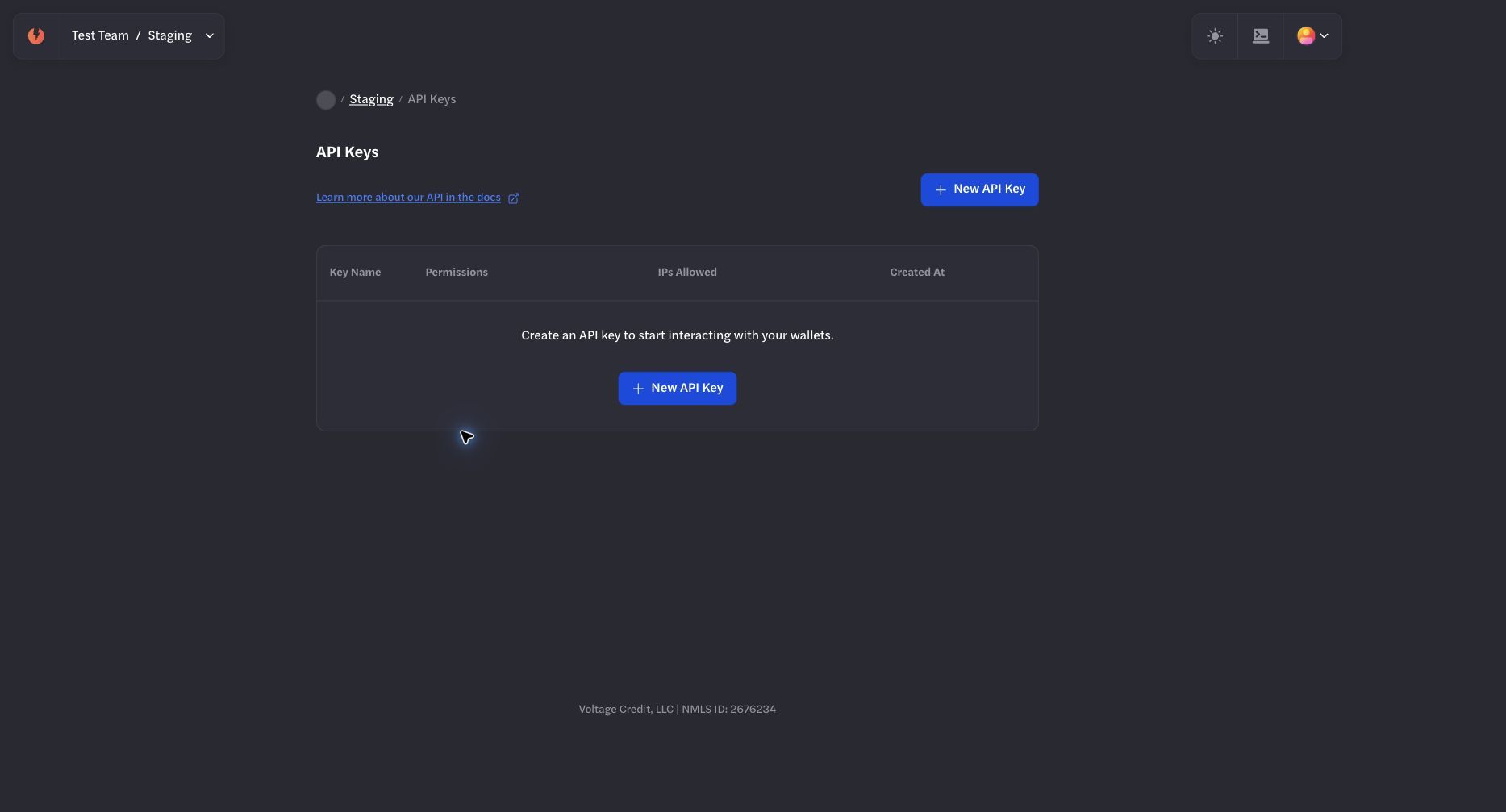
API keys are created and managed within the selected environment.
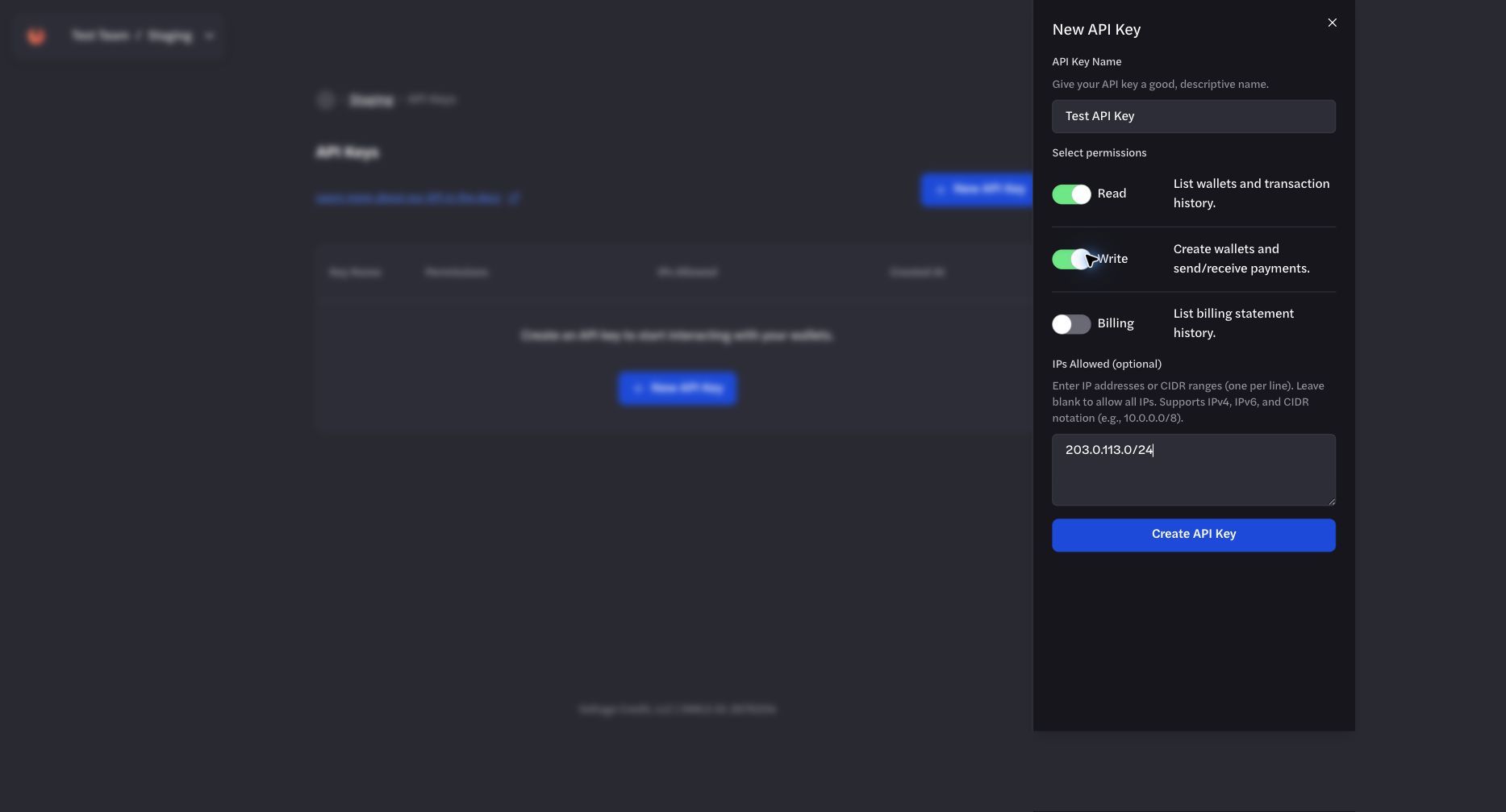
Grant only required permissions and add an IP allowlist when source addresses are stable.
Find identifiers
Section titled “Find identifiers”- Organization ID: Use the organization identifier supplied for your Payments API integration.
- Environment ID: Use the identifier for the selected staging or production environment.
- Wallet ID: Open Wallet Settings or list wallets through the Payments API.
- Line of credit ID: Retrieve current line-of-credit resources through the Payments API when the operation requires one.
Avoid relying on a fixed dashboard location for an identifier. Product navigation can change, while API responses remain the source of truth for programmatic workflows.